Can't Find an Extension for That?

Record the task once. Cinch does it again.

Automate repetitive browser work without coding.

7-day free trial $7.50/month Chrome

Do the task. Record it. Replay it. See a repetitive browser task become a reusable routine.

No workflow builder required

Record once. Replay whenever the task comes back.

Cinch turns repetitive browser work into a reusable button. Open the popup, record the task on the live page, then save it for the next time.

01

Record on the live page

Hover an element, click it, and choose the matching action from the on-page menu. Cinch captures the sequence in the order you build it.

02

Save reusable routines

Name the routine, keep the starting page if you want Cinch to return there, and store it in the extension for later replay.

03

Run, repeat, or queue

Start a routine once, loop it until you stop it, or queue several routines together and add custom waits between them while you keep working elsewhere.

04

Private and local by default

Your routines run locally in the browser and your browsing activity and saved automation data do not need to be sent to Cinch's cloud.

Quick look
Everything you need when a routine gets more involved.

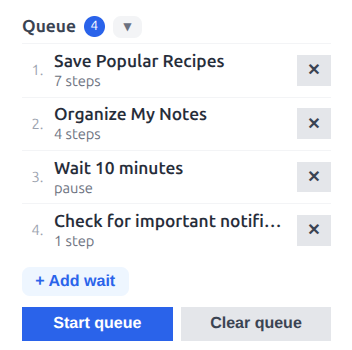
Queue view showing several saved routines and a wait item
Queue Line up routines, insert waits, and run longer sequences in a controlled order.
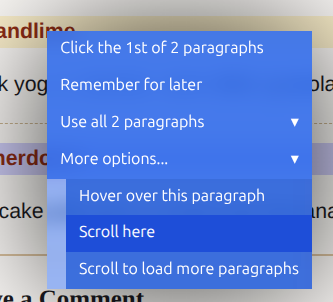
Step menu shown on the page while recording a routine
Step menu Choose the exact action to record from the page itself, including click, remember, hover, and scroll options.
Playback bar pinned to the page while a routine is running
Playback progress Watch progress on-page, inspect the current step, and pause or stop without losing context.

Where it fits

For people who have found themselves doing repetitive tasks in the browser.

Operations work

Handle recurring web-based workflows with a consistent routine instead of redoing the same sequence from scratch.

Research and collection

Collect links, text, or navigation paths you use often when reviewing listings, directories, dashboards, or catalogs.

Internal tools and back offices

Reduce friction in repetitive admin flows where the browser is the operating surface and the sequence rarely changes.

Background-friendly task runs

Kick off a routine, let it continue through the sequence, and use that time for adjacent work instead of babysitting every click.

Pricing

Simple monthly pricing

Start with a 7-day free trial, then keep using Cinch for one flat monthly price.

$7.50/month

One browser extension plan with full automation features, billed monthly.

Start 7-day free trial

How to use

How to use the extension

Install Cinch from the Chrome Web Store, then use these steps to sign in, record your first routine, and replay it when the task comes back.

1. Open Cinch and start your trial

  1. Install Cinch from the Chrome Web Store and pin it to your browser toolbar if you want faster access.
  2. Click the Cinch icon to open the popup.
  3. Open Account.
  4. Choose Sign in with Google.
  5. Finish the sign-in flow to start the 7-day free trial.

If Cinch asks for page access, allow it so routines can keep working across navigations and page changes.

2. Pick the page you want to automate

  1. Open the website or web app where the repeated task happens.
  2. Make sure the page is in the state where you want the routine to begin.
  3. Open the popup and click + New Routine.
  4. Cinch records the current page as the routine's first go to url step, so replay starts from the same entry point by default.

3. Record the workflow

  1. Move your cursor over the page. Cinch highlights elements as you hover.
  2. Click the element you want to work with and choose the matching action from the on-page menu.
  3. Use the recording bar's Add: row whenever you need a page-level step such as scroll to bottom, wait 3 seconds, reload page, or go to url.
  4. Continue adding steps. Cinch records clicks, collection steps, scrolls, hover dwells, remembered-item actions, and page actions in the order you build them.
  5. Use the recording bar pinned to the top of the page to name the routine.
  6. Review the sequence before saving so the steps match the real task in the right order.
  7. Click Save Routine.

4. Replay, repeat, or queue

  1. Return to the popup to see saved routines.
  2. Click Start on a routine to replay it on the active tab.
  3. Use the routine menu to choose Replay until stopped, Add to queue, or Delete.
  4. Open Queue to review upcoming routines.
  5. Use + Add wait to insert a pause between queued routines.
  6. Use Stop to end playback. Stopping also clears the active queue.

Feature guide

Cinch can do more than basic click replay. Use the matching feature below when your workflow needs navigation, loops, remembered data, or generated text.

Go to URL

Add this from the recording bar when the routine needs to navigate somewhere directly instead of relying on a click to get there.

  • Click go to url in the recording bar's Add: row.
  • Enter the full destination or just the domain. Cinch will add https:// automatically if you omit it.
  • Use it at the start of a routine to force a consistent entry point, or in the middle when the next step depends on a known destination.

Wait steps

Use waits when the site needs time to load content, finish transitions, or expose the next control.

  • While recording, click wait 3 seconds from the recording bar to insert a timed pause into the routine itself.
  • In the popup queue, use + Add wait when you want a pause between separate saved routines.
  • Use routine-level waits for page state changes and queue waits for spacing out larger multi-routine runs.

Click loops

Use looped clicking when a page has many similar elements and you want Cinch to repeat the same body of steps for each one.

  • Click one item in a repeated collection, then choose Use all ... and Start looped clicking sequence.
  • Record the steps that should happen for each item after the loop starts.
  • Save the routine once the loop body is complete. On replay, Cinch will revisit the collection and run the same sequence for each matching item.

Hover loops

Use looped hovering when content only appears on hover, such as menus, cards, previews, or tooltips.

  • Pick an item from a repeated group and choose Start looped hovering sequence.
  • Record the follow-up steps that depend on the hover state being active.
  • Use this when the page reveals controls or information only after a hover dwell.

Remember for later

Remembering lets you capture text or URLs from one part of the page and reuse them later in the same routine.

  • Click the source element and choose Remember for later.
  • Select the text values or URLs you want Cinch to store.
  • Remember a single item, all similar items, or a filtered subset when the workflow depends on carrying information forward.

Paste remembered items

These actions are available on text inputs, textareas, contenteditable fields, and other editable surfaces.

  • Choose Paste a remembered item when you want to insert one stored text value into the current field.
  • Choose Paste all remembered items when you want the saved texts inserted together.
  • Use remembered-item loops when the same form or action needs to repeat once for every remembered result.

AI text generation

Use this when you want Cinch to generate text directly into an input instead of copying a fixed phrase.

  • Click into an editable field and choose Auto-generate text from More options....
  • Provide the prompt for what should be written. Cinch can use remembered items as context for the generated result.
  • Use this for summaries, responses, or structured input that should be created fresh at runtime.

Visit each page and do something

Use this when you have a list of links and need the same sequence performed on each destination page.

  • Choose Use all ... and then Visit each page and do something.
  • Record the body steps that should happen on every visited page.
  • This is useful for directories, search results, listings, or any collection of detail pages.

Scroll to load more

Use this on infinite-scroll lists or pages that reveal more items only after scrolling.

  • Open More options... and choose Scroll to load more ....
  • Tell Cinch how many more items you want it to try to load.
  • Cinch will keep scrolling and waiting for the collection to grow until the target is met or no more items appear.

Practical tips

  • Use host access when a routine needs to survive page changes or redirects.
  • Keep routines focused on a single repeatable job so they are easier to maintain.
  • Use the queue when you want several saved routines to run in a controlled order.
  • If you need a different destination later in the routine, add another go to url step from the recording bar instead of relying on manual navigation.

Cinch

Automation that starts where your browser work already happens.